When I click on "Create my account" through the LumiCon email it says Error
Possible Causes:
- The invitation linked has expired. A LumiCon invitation link is valid for 7 days, after that timeframe the link expires and requires a new invitation link to be sent out.
-
Solution:
- Contact your company's administrator or original invitor to resend the new invitation link
-
Solution:
- Your company's network's firewall may be blocking access to our LumiCon platform.
-
Solution #1:
- Disconnect your device from the company's network by turning off wifi and connect to the internet via your mobile cellular network (if using a computer, use hotspot from your mobile)
- Retry accessing the link and follow LumiCon account creation steps
- Continue accessing the LumiCon platform via the mobile network/hotspot throughout the duration of your project
-
Solution #2:
- To remove the firewall restriction from your company's network, request your company's IT department to contact LumiCon support via support@lumicon.io or +1 (877) 873-1792 to for a list of domain and ports to whitelist
-
Solution #1:
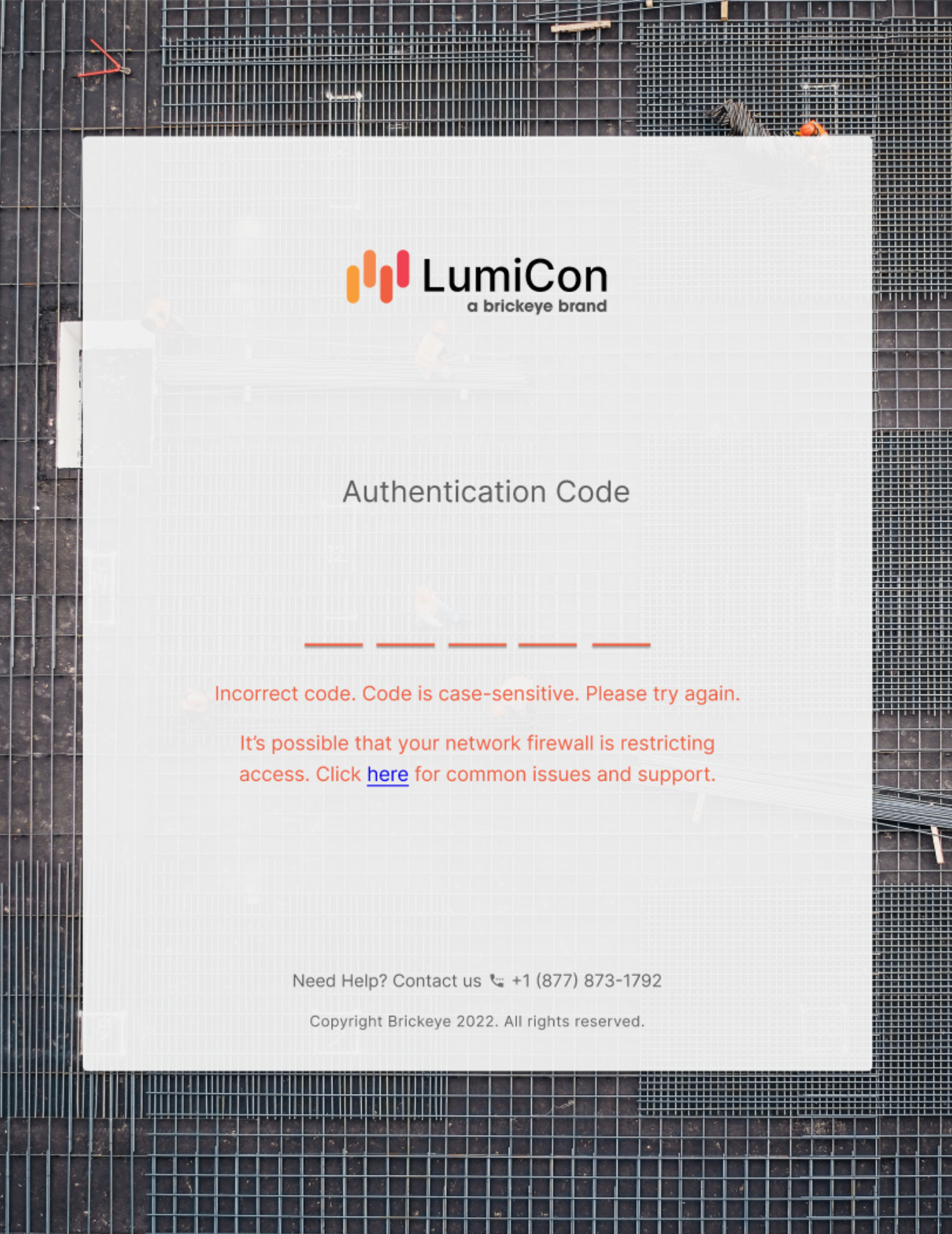
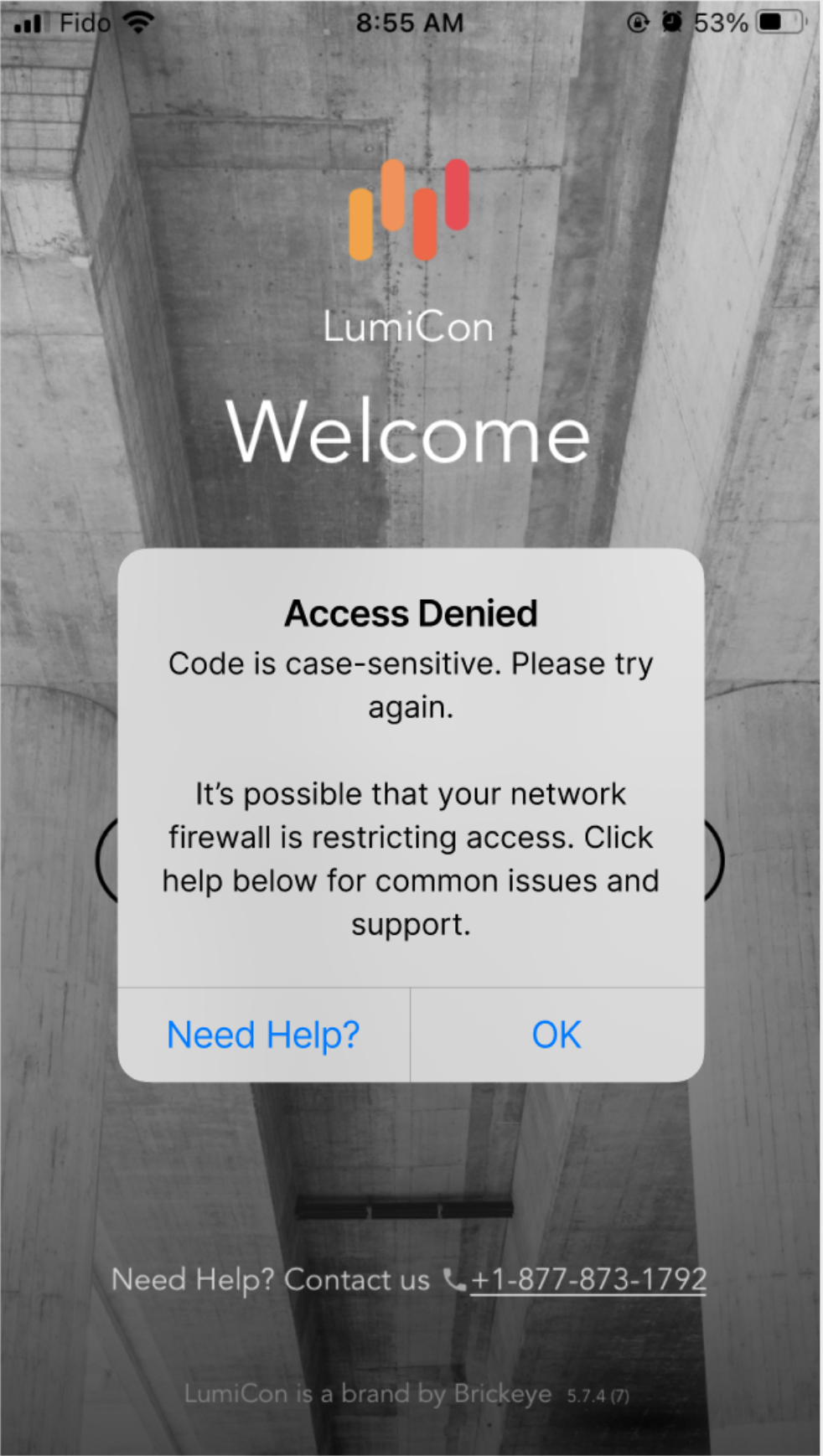
2. When I try logging into the LumiCon platform, it says my code is incorrect.
Web: Mobile:
 .
. 
Possible Causes:
- The authentication code is inputted incorrectly - ensure the code is entered in exactly as it appears. The code is case sensitive.
- Your company's firewall may be blocking access to our LumiCon platform, as a result our platform is telling you the authentication code is incorrect when you have entered it correctly.
-
Solution #1:
- Disconnect your device from the company's network by turning off wifi and connect to the internet via your mobile cellular network (if using a computer, use hotspot from your mobile)
- Re-enter the authentication code
- Continue accessing the LumiCon platform via the mobile network/hotspot throughout the duration of your project
-
Solution #2:
- To remove the firewall restriction from your company's network, request your company's IT department to contact LumiCon support via support@lumicon.io or +1 (877) 873-1792 to for a list of domain and ports to whitelist
-
Solution #1:
3. How long does the battery last on a LumiNode?
LumiNode batteries last approximately 3-6 months depending on environmental conditions and signal connectivity levels.
4. How do I charge my LumiNode?
To charge the LumiNode Plus, use the supplied USB-C cable and charger block. First, remove the orange cover.
Locate the USB-C port at the top of the node enclosure. Connect a USB-C cable to a wall charger (using the LumiNode+ charger kit or any standard USB-C cable and wall charger).
After plugging in the charger, one of the three LEDs in the charger icon will start flashing depending on the current battery level. The LumiNode Plus will typically recharge in 8-12 hours.
If the battery is still not charged within 12 hours, leave it plugged in for 24 hours. The three charger LEDs will remain solid when the device is fully charged.
5. How can I save battery?
- Avoid keeping the LumiNode in extremely high or low temperatures.
- Keep the LumiSense cable disconnected when the LumiNode is not in use.
- Install the LumiNode in a location with the best cellular strength – weak signal connectivity requires more power from the LumiNode to stay connected
6. What is the default configuration?
In order to maximize battery health, LumiNodes are reading data from the sensors every 15 minutes and transmitting the locally stored data to servers every hour.
7. Where do I find my authentication code?
- Look out for a second email from LumiCon after creating your account. Make sure to check your junk or spam mail.
- Note it down as you and your colleagues will be using the same code
6. When should I start my job?
After installing the LumiSense cables and LumiNodes at the worksite, wait for the concrete to be poured. When the last sensor is covered in concrete, start the job by swiping left on the job.
Started your job at the wrong time? *Click here*
8. How do I restart my LumiNode?
A LumiNode can be restarted by disconnecting the LumiSense (Pro) cable from the LumiNode. Once disconnected, wait about 30 seconds, and reconnect the cable.
The LumiSense (Pro) cable and LumiNode work as the power switch:
- Power On: LumiSense (Pro) cable connected to LumiNode
- Power Off: LumiSense (Pro) cable disconnected to LumiNode